
Studio guide
Vidu Q4 User Guide: How to Create Your First Video
Learn how to use Vidu Q4 from a source image to a finished clip. Follow our real Studio walkthrough, then use the mode, reference and prompt guidance to plan your own video.
By Vidu Q4 editorial team Updated
Open Vidu Q4 Studio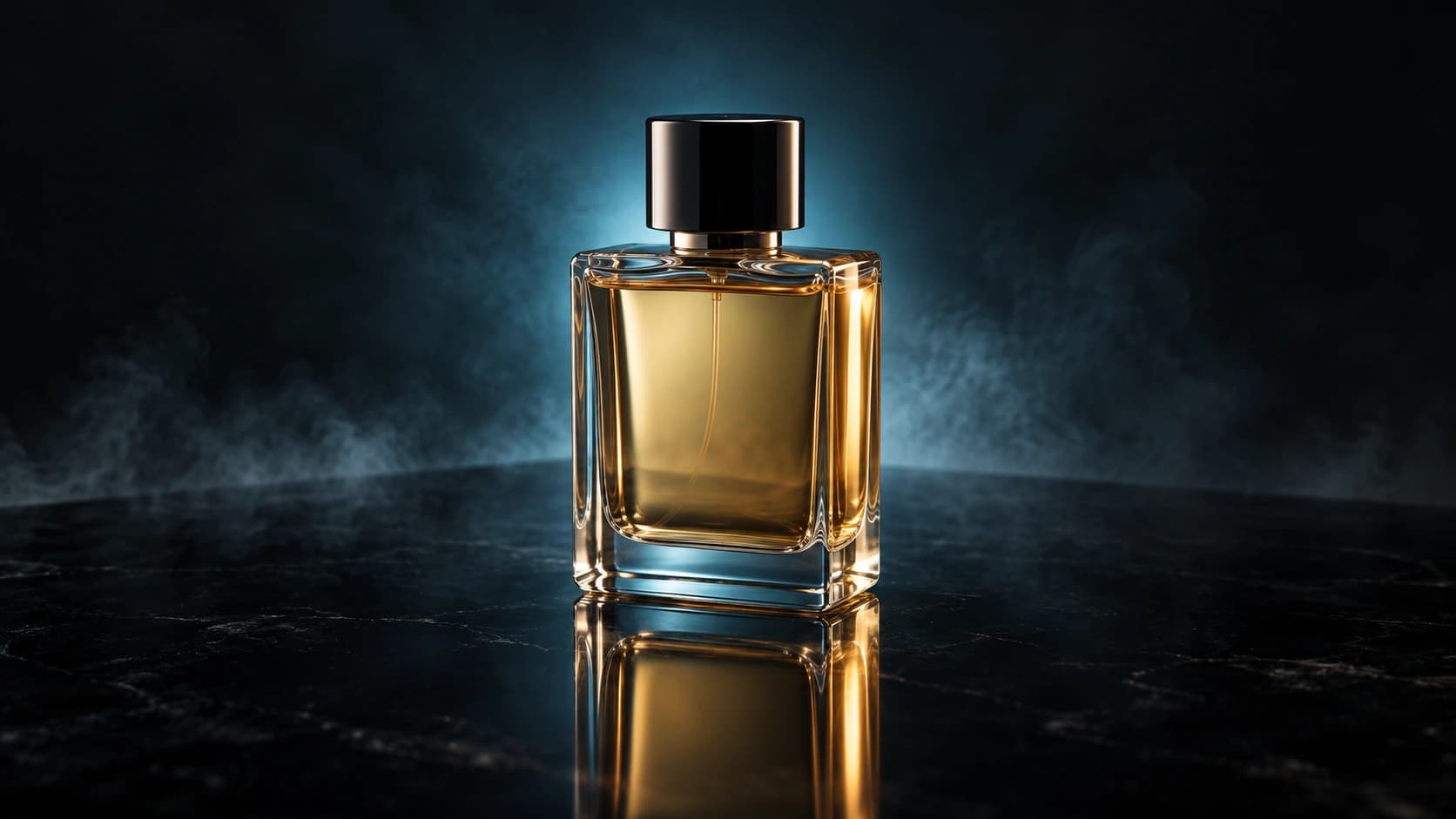
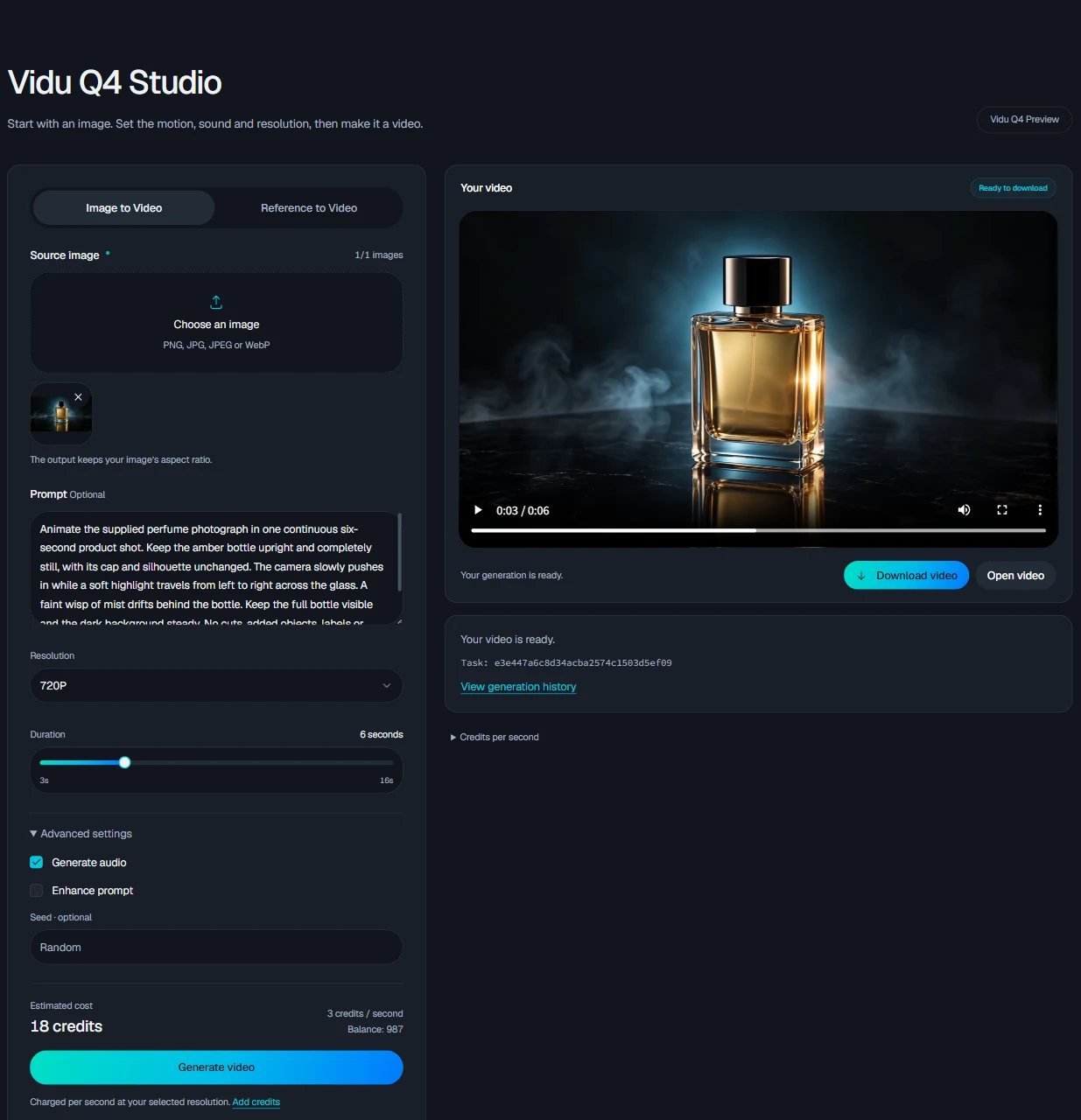
This walkthrough was completed in this website’s Q4 Studio on October 12, 2026. It includes the source WebP image, exact prompt, selected settings, actual operation screenshots and the resulting video. This site uses Q4 Preview and its own credit rates.
A complete example: animate a perfume product shot
We made this six-second product clip through the same Studio available on this website. Start with the source below, enter the exact motion prompt and follow the screenshots through to the finished export. The image comes from our earlier product example; this tutorial uses a new prompt and a new generation.
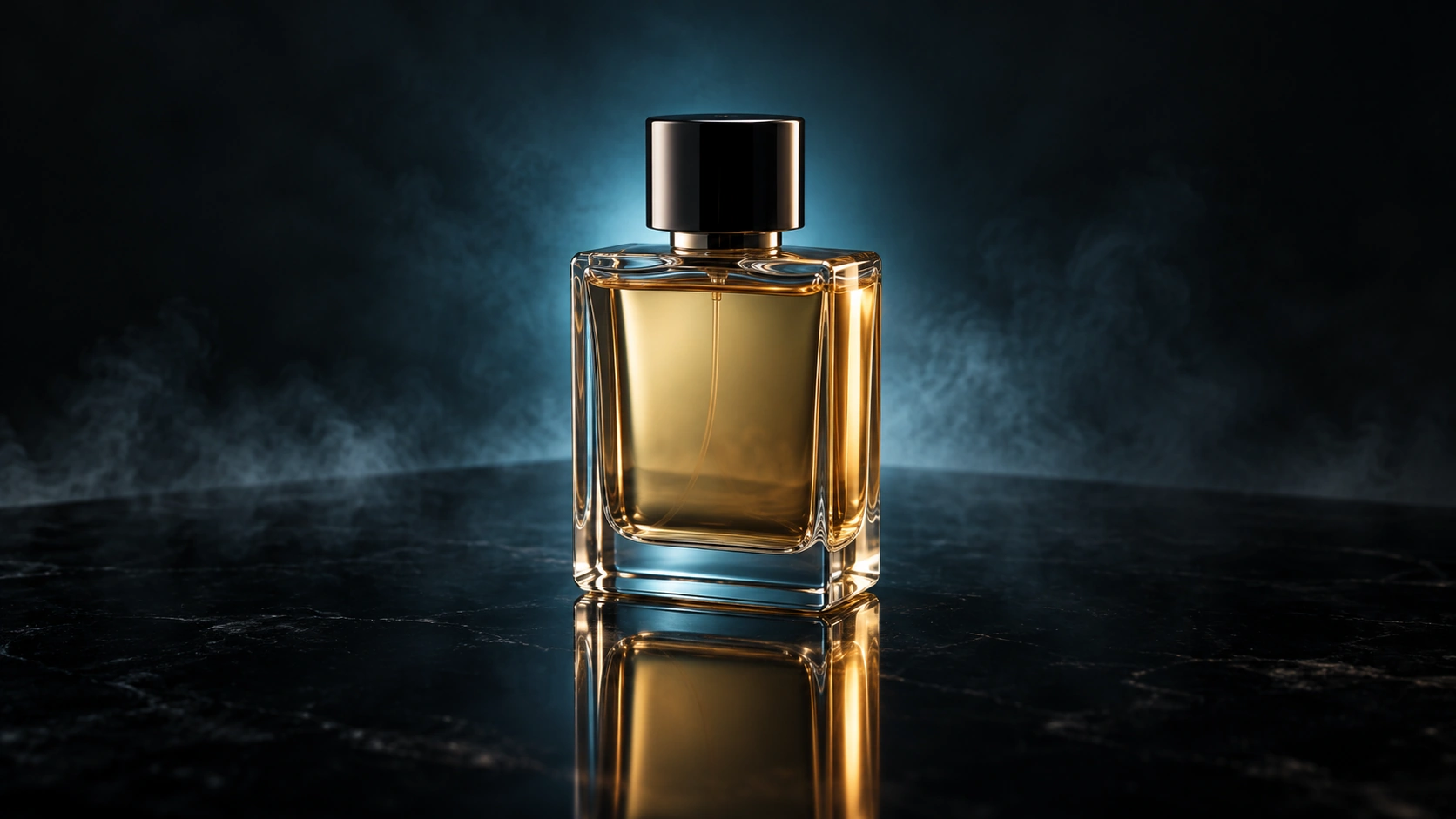
Settings used for this generation
- Mode
- Image to Video
- Resolution
- 720p
- Duration
- 6 seconds
- Framing
- 16:9 source image
- Generate audio
- On
- Enhance prompt
- Off
- Seed
- Blank (random)
- Cost
- 18 credits
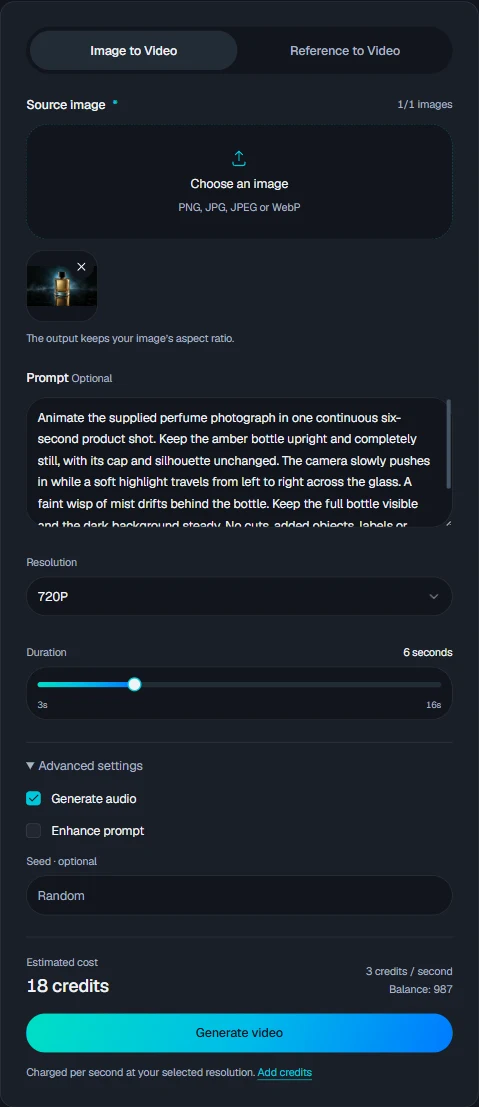
1. Load the source and enter this exact prompt
Choose Image to Video and upload the source image above. Paste this prompt, select 720p and set the duration to 6 seconds. Under Advanced settings, enable Generate audio and turn Enhance prompt off.
Animate the supplied perfume photograph in one continuous six-second product shot. Keep the amber bottle upright and completely still, with its cap and silhouette unchanged. The camera slowly pushes in while a soft highlight travels from left to right across the glass. A faint wisp of mist drifts behind the bottle. Keep the full bottle visible and the dark background steady. No cuts, added objects, labels or text. Quiet studio ambience, no speech or music.
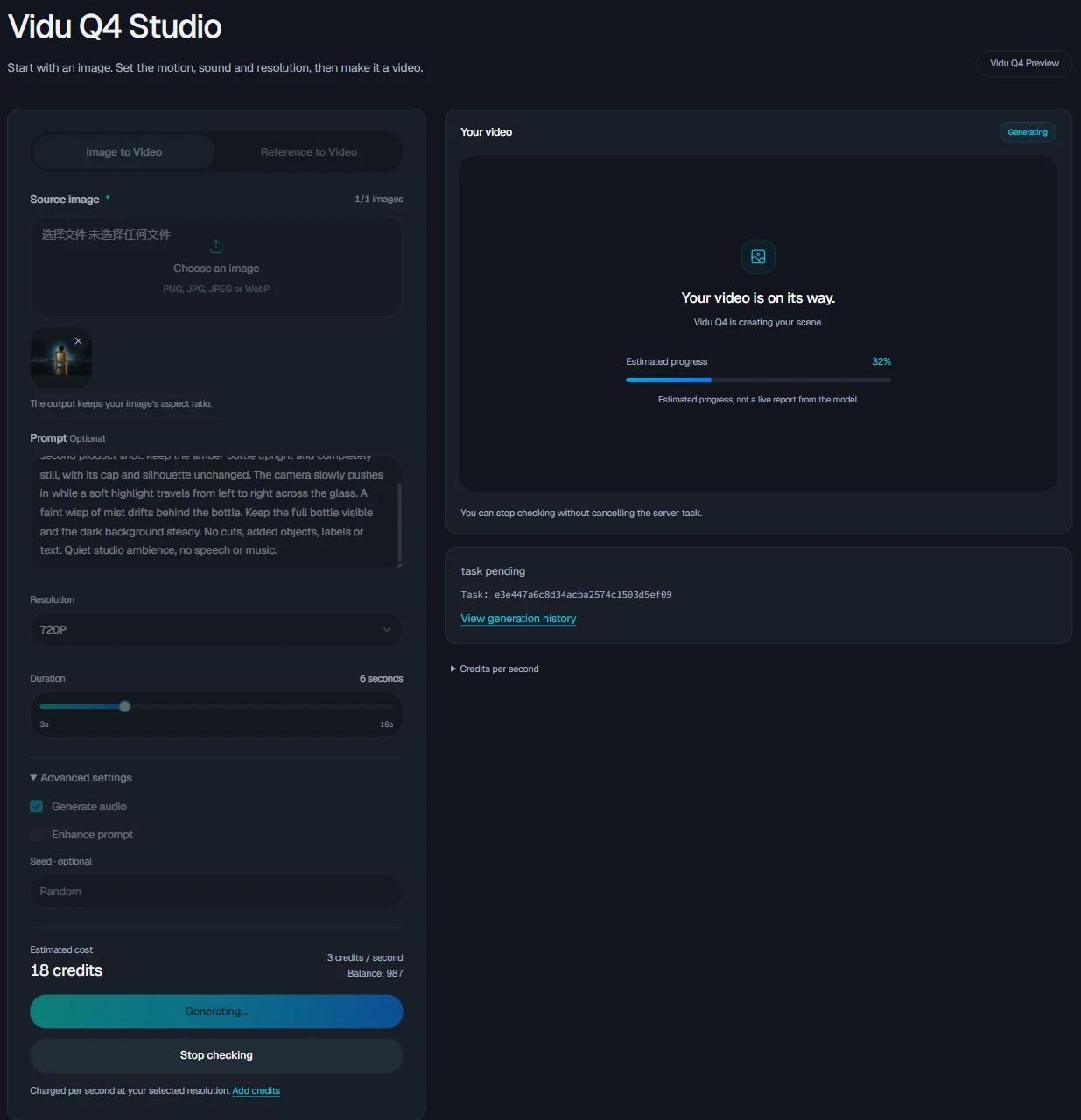
2. Generate once and wait for the result
We selected Generate video once. The site uploaded the source and created the task shown below. The progress percentage is an estimate. Keep checking this task instead of submitting another generation.
3. Play and download the completed clip
When Ready to download appears, play the full clip and use Download video to save it. This is the output returned for the source and prompt above on October 12, 2026. A new generation may differ.
Q4 Preview model parameters and this Studio
This guide covers the Studio on this website. The Vidu Q4 Preview user guideline provides model background, but some of its parameters differ from the controls available here.
| Setting | Preview guideline | This website’s Studio |
|---|---|---|
| Image to Video input | One image | One image |
| Reference to Video images | 1–15 | 1–12 |
| Voice references | Up to 3 in reference mode | Up to 3 in reference mode |
| Image to Video duration | 3–16 seconds | 3–16 seconds |
| Reference to Video duration | 1–16 seconds | 3–16 seconds |
| Resolution | 720p, 1080p, 2K, 4K | 540p, 720p, 1080p, 2K, 4K |
| Framing | Source ratio in image mode; five choices in reference mode | Same framing controls |
Use the Studio column when preparing a generation here. The Preview guideline describes a Preview release and labels it closed beta; it is not a live availability notice for this service. This website also uses its own credit rates.
Before you start
Open Vidu Q4 Studio on the homepage. Prepare a PNG, JPG, JPEG or WebP image that clearly shows your subject. Choose a picture with room for the motion you want, and use material you have permission to upload.
You can inspect the supplied examples before generating. Use references and Create with these settings load the reference files, original prompt, resolution, framing, duration and audio setting. Image mode follows the source image’s ratio. No paid task is submitted until you choose to generate.
Sign in before generating and check your balance. The form shows the estimated credit cost for your selected duration and resolution. Add credits through pricing if your balance is too low. Do not assume a free allowance: use the balance displayed in your account.
1. Choose Image to Video or Reference to Video
Image to Video is the simplest first attempt. Upload one source image and describe the motion you want to introduce. The output follows the source image’s aspect ratio. A prompt is optional, but a short action brief makes your intention easier to review.
Reference to Video accepts 1–12 images and optionally up to 3 voice references in this Studio. A prompt is required. Use this mode when more than one visual reference helps explain the subject or scene, or when you need voice guidance.
Keep the reference set consistent. Start with a few useful files and explain their roles in the prompt. The current form requires you to remove extra images before switching back to the single-image mode.
Choose image mode for an existing product render, portrait or landscape whose composition you want to animate. Choose reference mode when separate assets need to guide a character, an object or a voice. Neither mode in this Studio starts from text alone.
Prepare images and voice references
For a single-image shot, choose a clear subject with enough space around it for the planned movement. Compose or crop the image to your intended framing before upload: image mode inherits that shape.
For a reference set, give each file one job. A front view can establish a product’s appearance, while a side view can clarify its shape. Avoid mixing different product versions or contradictory character designs. Start small so you can identify which reference helped when comparing attempts.
Use plain descriptions in the prompt to explain the assets: “Use the person in the red jacket as the speaker; use the room image for the setting.” This is a suggested briefing approach, not special file-binding syntax.
For voice guidance, prepare a clean recording with one clearly audible speaker and little competing sound. State who speaks, the exact line and its delivery in the prompt, and enable Generate audio. A voice reference supplies guidance; listen to the output to assess the actual voice and timing.
2. Write the action, camera and sound
Use a short brief with four parts: subject, action, camera, sound. Keep the main action simple enough to finish within the selected duration.
Product reveal
“The glass perfume bottle remains upright on the stone surface. The camera makes a slow left-to-right arc. Reflections move gently across the glass. Quiet studio ambience, no speech.”
Character moment
“The character looks up from the book and smiles toward the camera. A steady medium shot, soft window light. The character says, ‘I saved you a seat.’ Low room ambience.”
Atmospheric scene
“Leaves move lightly in the breeze as the camera slowly approaches the open doorway. Keep the scene calm and the lighting steady. Soft wind and distant birds, no dialogue.”
These are suggested prompts to adapt to your own images. They are not the original prompts for the supplied examples. If your picture already establishes the clothing and setting, spend the brief on motion rather than repeatedly describing every visible detail.
Make camera movement and dialogue specific
Choose one camera instruction for an early draft. “Pan right” asks the camera to turn; “track beside the walking character” asks it to move with the subject; “slowly move closer” changes the camera’s distance. State whether the subject also moves so the two instructions do not conflict.
For dialogue, name the speaker and quote the exact words. Add a short delivery instruction, such as “quietly, after a brief pause,” and leave enough time for the line. Begin with one speaker before adding exchanges between characters.
For a sequence, write the order explicitly: the character notices the light, turns toward it, then holds the final pose. Treat timing requests as creative direction to review in the output, not guaranteed frame-accurate editing. The Studio does not provide a shot-editing timeline.
After generation, change the instruction that addresses the observed problem. If the camera travels too far, reduce the move; if speech is rushed, shorten the line. Keep a record of the previous prompt and settings. These suggestions are separate from the exact prompt used in the worked example above.
3. Set duration, resolution and framing
Choose an integer duration from 3 to 16 seconds. A five-second draft is a useful starting point for one simple action. Longer is helpful only when the scene needs the time.
Choose 540p or 720p for an early draft if that is sufficient to judge the action. The available higher tiers are 1080p, 2K and 4K. Review the draft before spending more credits on the final format.
In reference mode, choose 16:9, 9:16, 1:1, 3:4 or 4:3. Pick the shape of the target screen before preparing references. Image mode follows the uploaded image instead of offering a separate ratio selector.
Under Advanced settings, use Generate audio to request sound or silent output. Image mode also has Enhance prompt. An optional seed can be recorded alongside the other settings; leaving it blank uses random behavior. Do not treat a seed as a guarantee of identical output.
4. Check the credit estimate
Estimated credits = duration in seconds × the selected resolution’s rate. The rates below are for this website’s Studio.
For example, a five-second 720p attempt is 5 × 3 = 15 credits. A ten-second 1080p attempt is 10 × 4 = 40 credits. Budget additional attempts if the brief is still unresolved.
Check the estimate immediately before generating. If your balance is insufficient, selecting Generate opens a dialog with the three credit packs. Choose a pack to open checkout, then return to the Studio after payment. Buying a pack does not automatically submit a generation; review your settings before generating again.
| Resolution | Credits / second | 5 seconds | 10 seconds | 16 seconds |
|---|---|---|---|---|
| 540P | 1 | 5 | 10 | 16 |
| 720P | 3 | 15 | 30 | 48 |
| 1080P | 4 | 20 | 40 | 64 |
| 2K | 5 | 25 | 50 | 80 |
| 4K | 8 | 40 | 80 | 128 |
5. Generate and follow the existing task
Select Generate video once. The Studio uploads your files and creates a task in History. The temporary record is matched to the returned task ID, and History automatically updates its status and result.
Cancel upload is available during upload. After the task is created, the Studio automatically checks its status. Open History to view previously submitted tasks and refresh their status.
If the task creation response is interrupted, the Studio displays an error and allows a new attempt. History shows tasks that were accepted by the server.
If you leave and return, sign in with the same account and open History to view your previous tasks. Keep a separate record of your task ID for important work.
6. Review and download the result
When the result is ready, play it in the result panel. Watch once at normal speed, then inspect the parts that define success: the action’s ending, subject identity, product shape and any spoken line.
Use Download video below the selected result to save it. If the download cannot complete, retry from the same record in History. Save the original file together with the prompt, settings and references you used.
For a revision, choose one problem to address first. A wrong camera move calls for a clearer movement instruction; a rushed line may need fewer words. Keep any useful take before making another attempt.
Common problems and the next useful action
| Problem | What to do |
|---|---|
| Reference mode will not generate | Add at least one image and a written prompt; stay within 12 images and 3 voice references |
| Cannot switch to image mode | Remove extra images so only one source remains |
| Balance is too low | Reduce duration or resolution, or add credits before submitting |
| Status checks interrupted | Open History and refresh to view the latest task status |
| Creation response is interrupted | View History for accepted tasks, or submit a new generation |
| Download fails | Retry Download video from the selected History record |
| The action feels crowded | Limit the brief to one action and shorten unnecessary dialogue |
For background on the model’s strengths and limits, read the Q4 review. If you already use an older Vidu workflow, see Q4 vs Q3 before changing it.
Questions and answers
How do I use Vidu Q4 for the first time?
Open the homepage Studio, choose Image to Video, upload one image, write a short motion prompt, select duration and resolution, check your balance and estimated cost, then generate. Review the resulting clip before downloading.
Can I generate from a text prompt alone?
Not in the current Studio. Both modes require an image. Reference to Video also requires a written prompt.
How much does a ten-second 720p video cost?
It costs 30 credits at this site’s current rate of 3 credits per second. Other providers and Vidu’s own API use separate pricing.
Does Stop checking cancel my video?
No. It stops local status checks while the server task can continue. Resume the same task or inspect your history before considering another generation.
Can I add a voice reference?
Yes, in Reference to Video. This Studio accepts up to three voice reference files. Explain the intended speaker and line in the prompt, then review the generated speech and timing.